Here is a list of additional tips on how to use Droplr in your Trello account to enhance your experience.
Drops section
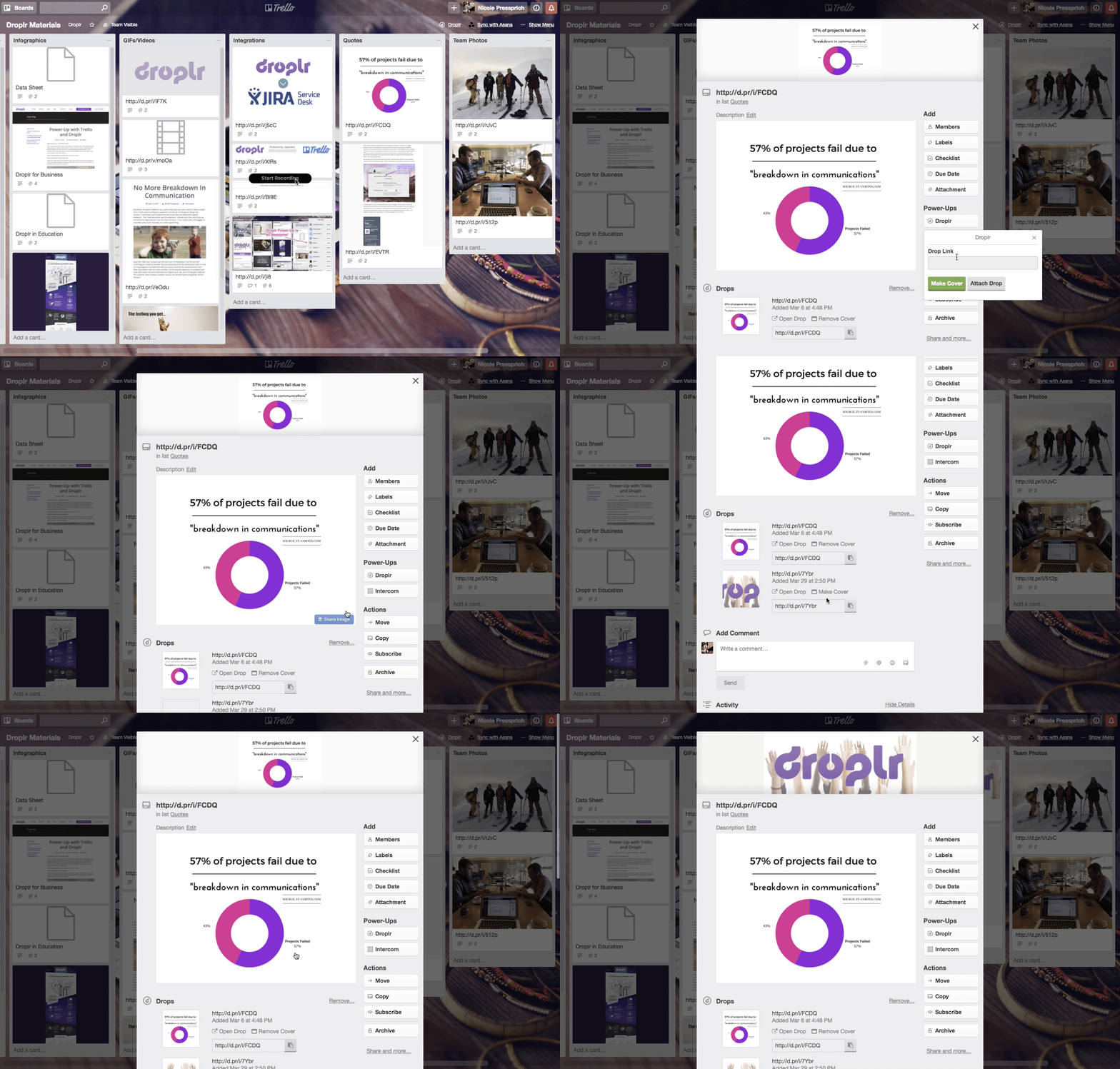
For every Drop attached to a card you can see a thumbnail and do things like open the Drop in a new window, copy the link to the clipboard and set the Drop as the cover image. Turning a Drop into a card cover is also a convenient way to create a backup of a Drop image.

Droplr card button
Easily attach a Drop Link or use the drop as the cover for an existing card.
Droplr board button
Create a new card in any list using a Drop Link. You’ll have options to immediately use the Drop as the card cover or embed a preview of the Drop in the description.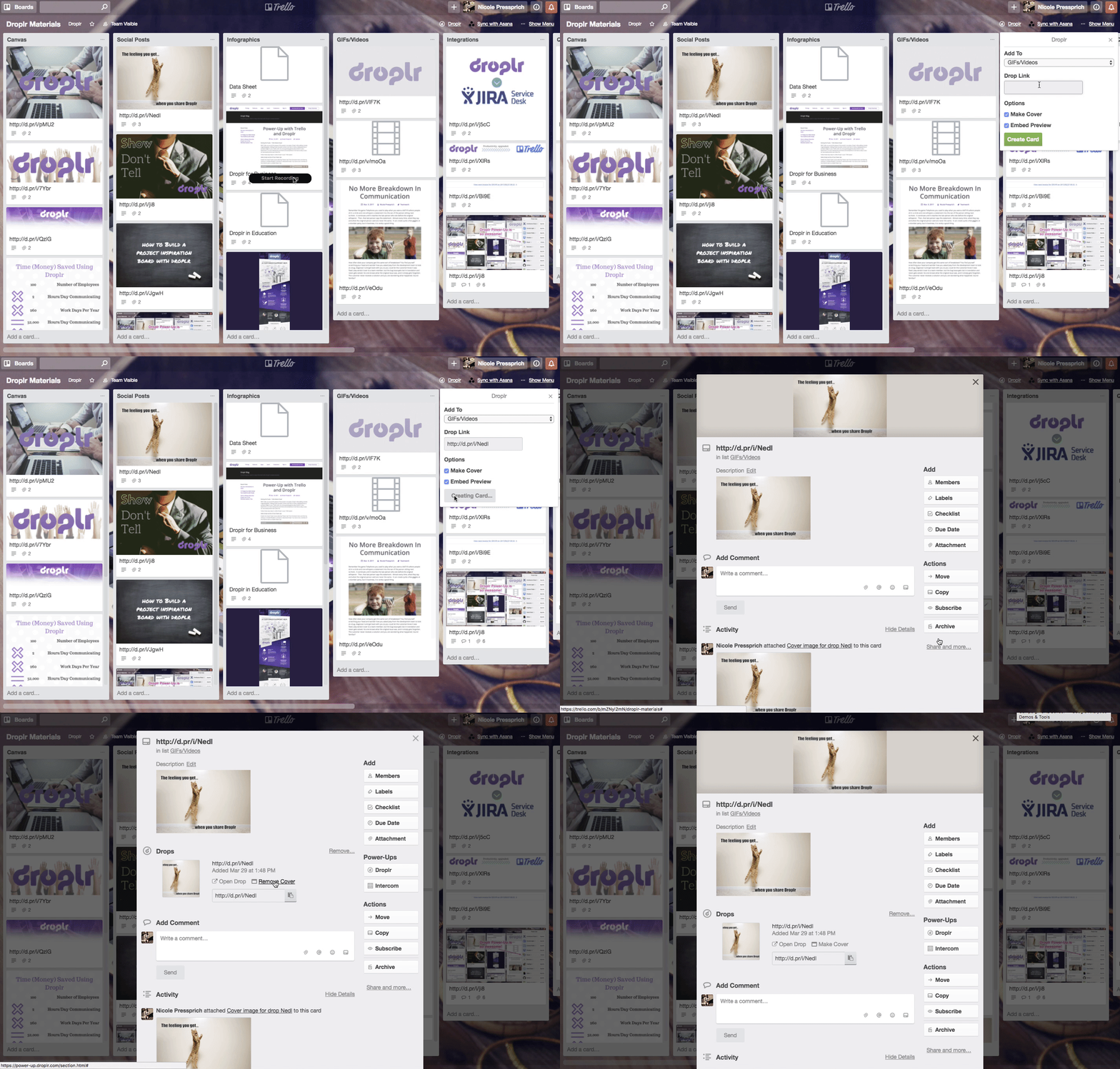
Need to Remove Your Personal Droplr Account from Trello or Log Into Another Account?
Just select the ‘Settings’ icon, click on ‘Remove Personal Settings’ and then select ‘Clear Data’.